Marketing AI OS "ENSOR" Adds "Element Replacement" Feature for Ad Banners — Precisely swaps selected parts by uploading two images, maintaining background, composition, and lighting
REHATCH Inc. has introduced a new "Element Replacement" feature to its marketing AI OS "ENSOR." This tool allows users to precisely replace specific elements like logos or products in ad banners while preserving the original background and lighting, streamlining the creative production process through a simple two-image upload.
📋 Article Processing Timeline
- 📰 Published: March 30, 2026 at 05:11
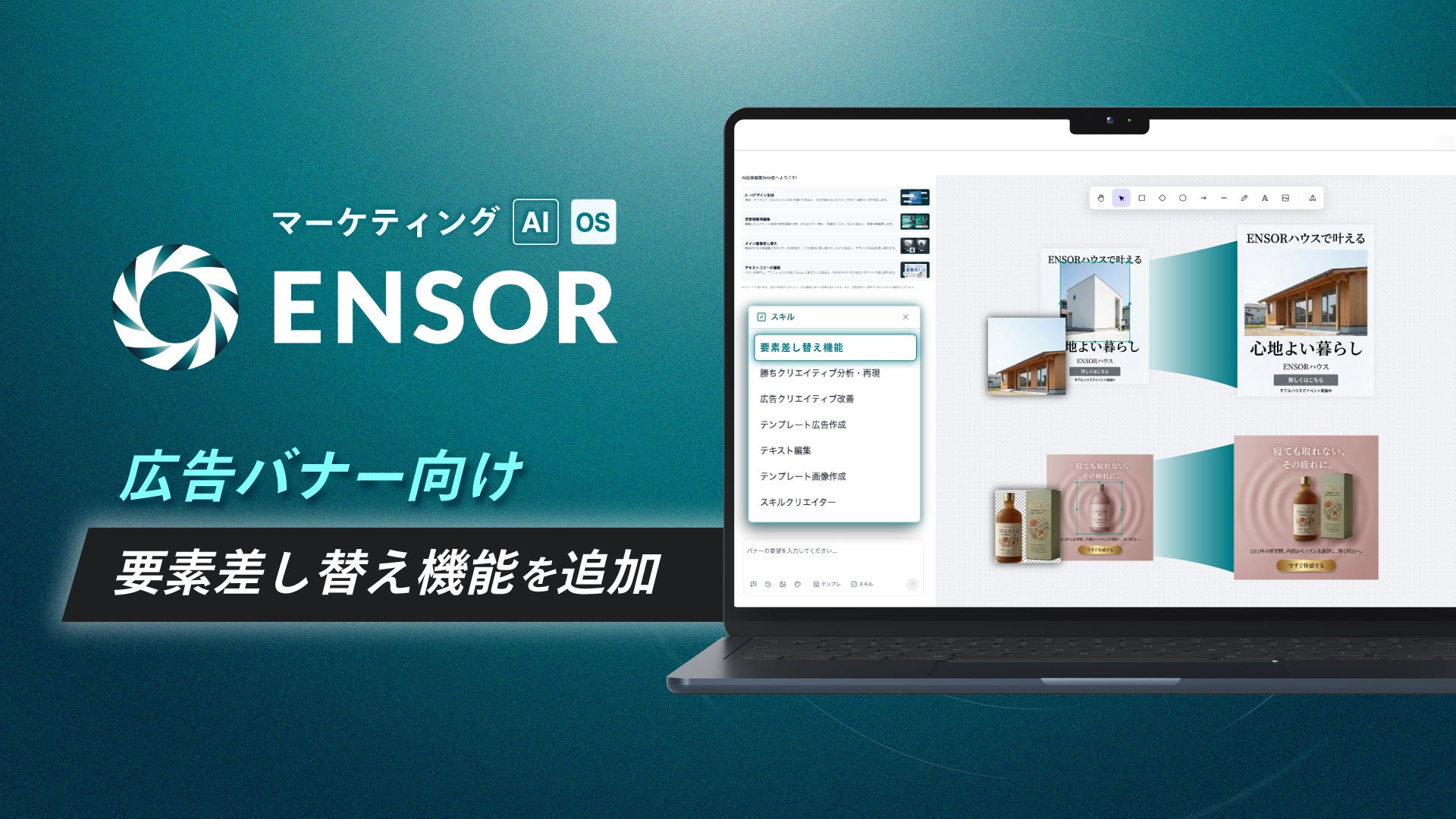
REHATCH Inc. (Headquarters: Chiyoda-ku, Tokyo; CEO: Ryota Sakoda) is pleased to announce the addition of a new "Element Replacement" feature to its marketing AI OS "ENSOR" to support ad banner production.
■ Background of the Release
In display advertising, there are many situations where product images, logos, or key visuals are replaced to switch the promotional message while maintaining the same layout. However, when using image generation or editing tools to recreate the entire image, the "consistency of the banner"—such as background, composition, and lighting—tends to break, often leading to corrections and rework.
・I want to swap only the photo or logo to match the appeal or placement, but I don't want to change the background or lighting.
・I want to perform replacement tasks in a short time while maintaining design reproducibility.
・If there are too many operational steps, it is difficult to incorporate into the production flow.
With this functional addition, ENSOR provides an environment where users can obtain an image with only the specified elements replaced simply by uploading two images: the banner image with the area already selected and the replacement material.
■ Details of the New Feature
This feature precisely replaces specific elements within an ad banner (product images, logos, portraits, etc.) with another image in the area selected by the user. It allows for a focus on swapping elements while maintaining the atmosphere of the background, composition, and lighting of the parts outside the replacement target.
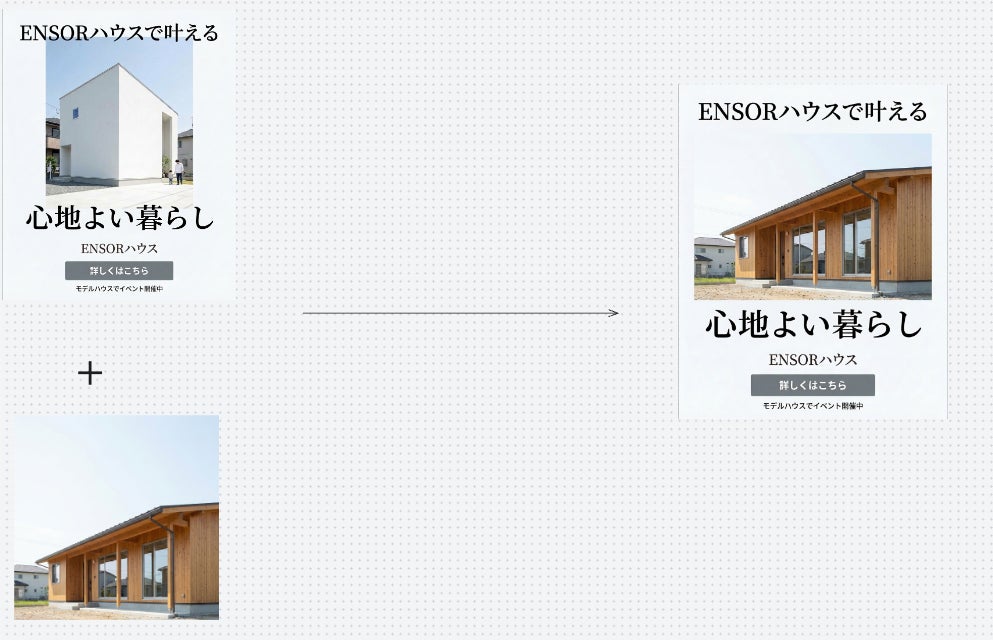
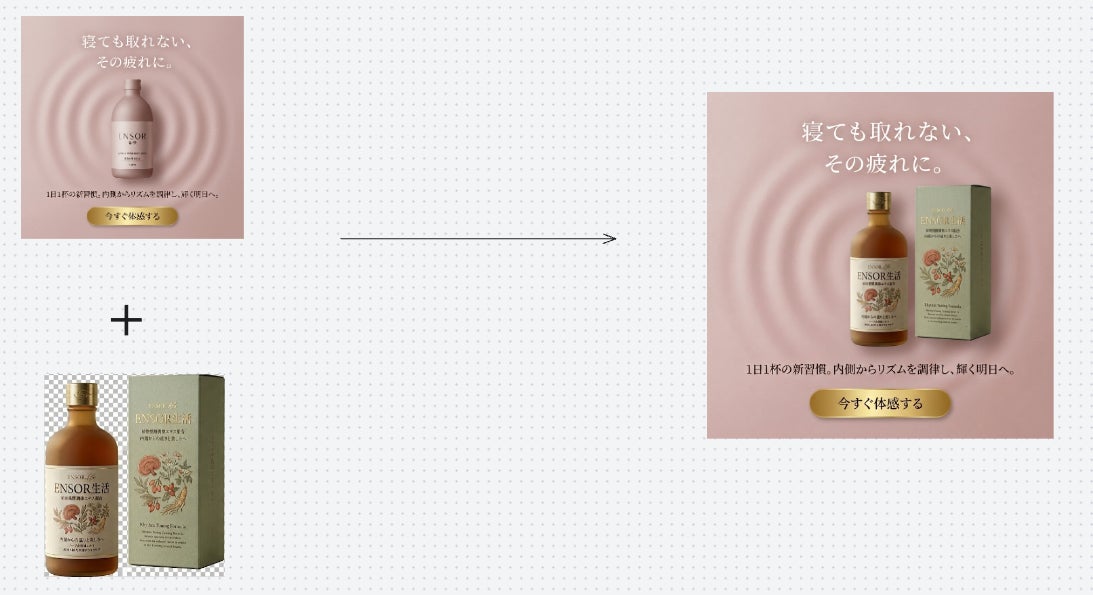
▼ Usage Flow (2 steps)
Step 1: Launch the "Element Replacement" function and prepare images according to the instructions.
Step 2: Upload both the ad banner image with the selected range and the replacement image together.
The process executes once the two images are provided, generating the resulting image without requiring extra confirmation steps. Fine-tuning the finish or replacing other parts can be done by following the same procedure again...