Announcement of Band-in-a-Box 33 for Windows Release
WonderWorks Inc. is releasing Band-in-a-Box 33 for Windows, featuring a modernized GUI, AI-powered lyric generation, and VST3 support. The software allows users to automatically compose music and create accompaniments across various genres and instruments.
📋 Article Processing Timeline
- 📰 Published: March 28, 2026 at 01:16
- 🔍 Collected: March 28, 2026 at 21:59 (20h 43m after Published)
- 🤖 AI Analyzed: April 15, 2026 at 04:51 (414h 51m after Collected)
WonderWorks Inc. (Headquarters: Shibuya-ku, Tokyo; Representative Director: Tetsuo Okuda) will release the download versions of its automatic composition software, "Band-in-a-Box 33 for Windows" (Standard and Upgrade versions), on March 26, 2026. The physical packaged versions are scheduled for release on April 10, 2026, and a pre-order campaign (1,000 yen off) starts today on the official website. The packaged version includes an original Band-in-a-Box pouch.
"Band-in-a-Box" is software loved worldwide as the standard tool for automatic composition and accompaniment creation. By simply specifying your preferred musical style, you can instantly compose parts such as melody, piano, strings, guitar, bass, and drums.
Version 33 is based on the latest English edition, Band-in-a-Box 2026. A new GUI has been introduced to the main screen and various windows, refreshing the design to be modern and cohesive while improving usability. It is equipped with more convenient and easy-to-use features, including support for VST3 plugins, AI-powered lyric generation, and a multi-pick library for easy style selection.
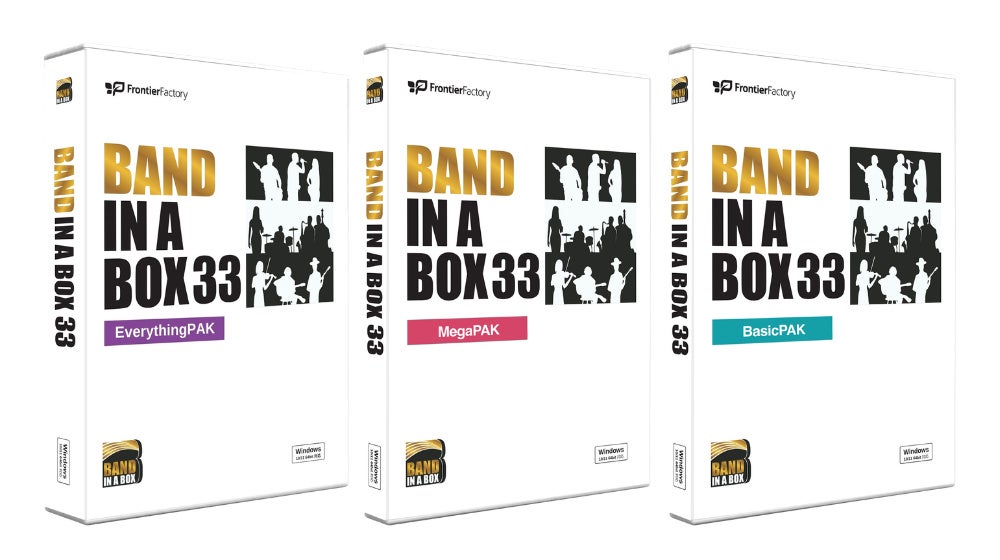
Product Lineup
-
Packaged Version

|
Product Name |
Product Code |
JAN |
Price (incl. tax) |
|
Band-in-a-Box 33 for Windows BasicPAK Package Version |
PGBBYBW111 |
4580786171102 |
24,800 |
|
Band-in-a-Box 33 for Windows MegaPAK Package Version |
PGBBYMW111 |
4580786171119 |
44,800 |
|
Band-in-a-Box 33 for Windows EverythingPAK Package Version |
PGBBYEW111 |
4580786171126 |
89,800 |
Upgrade Package Version
|
Product Name |
Product Code |
JAN |
Price (incl. tax) |
|
Band-in-a-Box 33 for Windows BasicPAK VU Package Version |
PGBBYBW411 |
4580786171133 |
14,800 |
|
Band-in-a-Box 33 for Windows MegaPAK VU Package Version |
PGBBYMW411 |
4580786171140 |
27,800 |
|
Band-in-a-Box 33 for Windows EverythingPAK VU Package Version |
PGBBYEW411 |
4580786171157 |
54,800 |
Download versions are sold on the official website https://www.biab.jp.
Upgrade/Support Policy and Notes
・ Products eligible for upgrade are those up to 3 versions prior to the new product. Technical support covers versions 30 through 33.
・ There are no plans to sell grade-up versions (e.g., from Basic to Mega). Customers wishing to grade up are requested to purchase the standard version.
・ Upgrade versions can only be purchased by customers who own the same model (Windows/Mac) and the same SKU (Basic/Mega/Everything) from up to 3 versions ago.
Caution
The operating environment requires a 64-bit OS only. Please carefully check the operating environment and OS version before purchasing.
What you can do with Band-in-a-Box
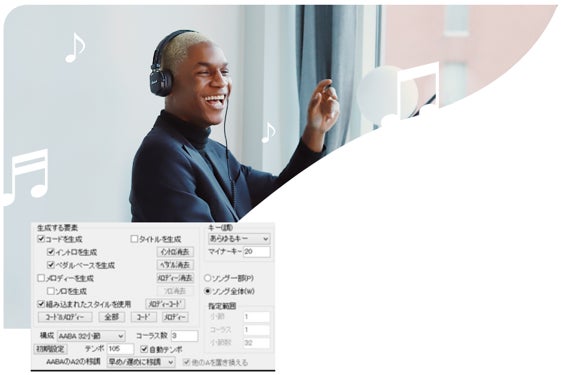
Automatically create BGM for your original songs and videos
Simply select items such as your preferred genre and tempo, and the chord generation algorithm will automatically create a chord progression that fits the genre!
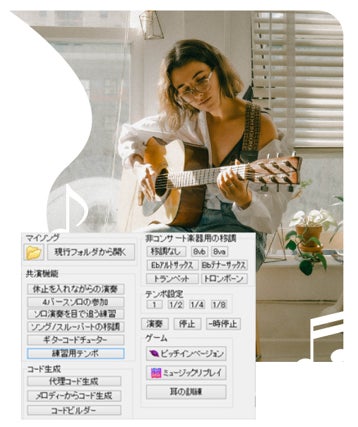
Perfect for solo performance practice! Used by many musicians
Use it for solo performance practice with automatically generated songs or songs where you've input chord progressions of standard numbers and had the accompaniment generated automatically!
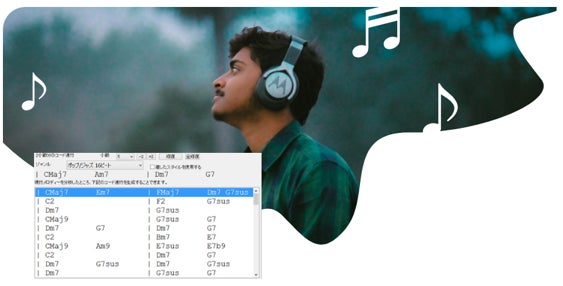
Generate chord progressions from melodies and extract chord progressions from music data
You can automatically add chord progressions to melodies input via MIDI keyboard, or extract chord progressions from music data! It supports music learning and song production.
Band-in-a-Box 33 Main New Features
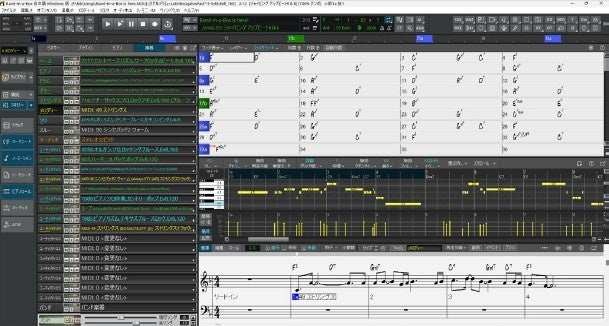
GUI Renewal
A new GUI has been introduced to the main screen and various windows, refreshing the design to be modern and cohesive. Usability has also been improved.

Top Toolbar and Layout Redesign
Buttons have been unified throughout, following standard UI design rules.

Unified Icon Design
Buttons have been unified throughout, following standard UI design rules.
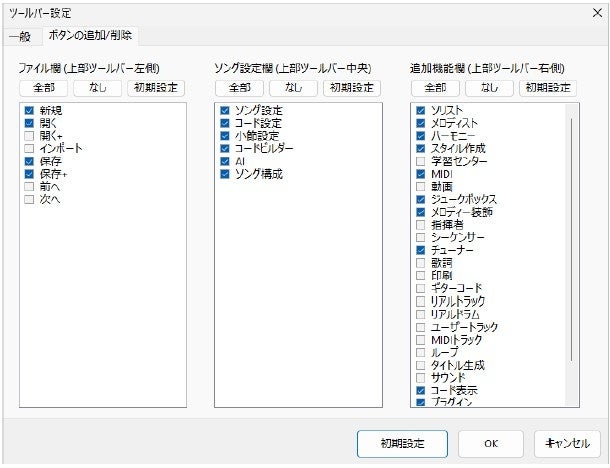
Button Customization
Buttons in the file, song settings, and additional features sections can be added or removed according to your preferences. This is done in the Toolbar Settings dialog. Once you open the Toolbar Settings dialog using the gear button on the far right of the top toolbar, switch to the [Add/Remove Buttons] tab and enable the buttons you want to display on the toolbar. Quick buttons for [All], [None], and [Initial Settings] are also available for each section.
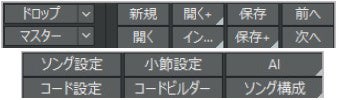
Text Size Adjustment
Button text is not embedded in images and can be displayed in a readable size. Change the size in the Toolbar Settings dialog. Open the dialog using the gear button at the far right of the top toolbar, switch to the [General] tab, and set it in the "Text Size" field.
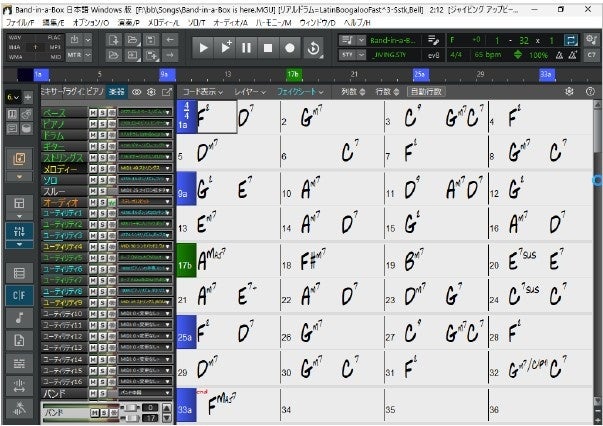
Low-Resolution Support
The toolbar and main screen support a resolution of 1024x768. The toolbar adjusts automatically to the screen size, preventing buttons from being cut off or overlapping.

Drop Station Improvements
The drop station, which used to be small and difficult to handle, is now displayed larger, making it easier to use.
Renaming of Drag & Drop Operation Mode
The operation mode previously known as "DAW Plugin Mode" has been changed in the latest version to the more accurate "Drag & Drop Mode."
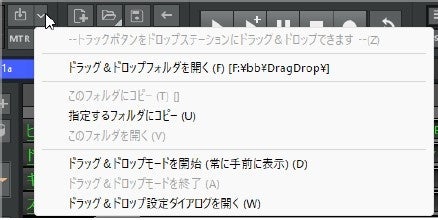
Addition of Drop Button
The newly added [Drop] button allows you to switch the Drag & Drop mode by pressing the left side, and select various options for drag and drop by pressing the right side.
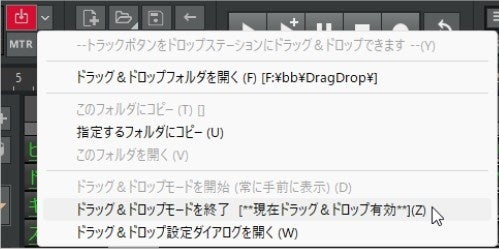
Status Display for Drag & Drop Mode
When the mode is active, the [Drop] button is displayed clearly in red, and the status is also clearly indicated within the button's menu.
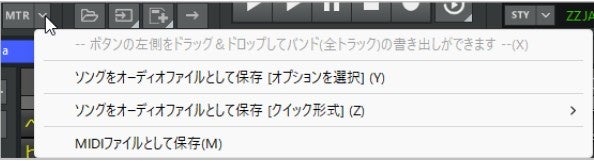
Addition of Master Button
When you drag and drop the left side of the newly added [Master] button to the drop station, you can export the entire band as an audio or MIDI file. Pressing the right side allows you to select options for exporting.
Simplified File Name Option
You can now choose how files created via drag and drop are named. This option is located in the Drag & Drop Settings dialog.
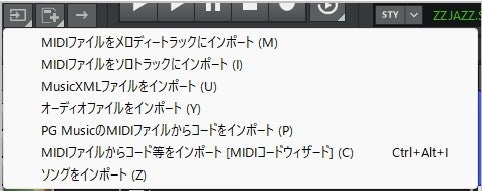
Addition of Import Button
The newly added [Import] button allows you to import various files such as MIDI files and audio files into the current song. (Note: This button is not displayed on the toolbar by default but can be displayed via the Toolbar Settings dialog.)

Status Display for Playback Operation Buttons
Status is now displayed for the [Play], [Play+], [Pause], [Stop], [Record], and [Range Loop] buttons. For example, the [Play] button turns green while a song is playing, [Play+] turns blue while a track is being generated, and the [Record] button turns red while recording.
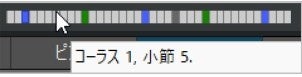
Display Position in Song Overview Hints
When you hover the mouse cursor over the song overview, the bar number and chorus number of the cursor position are displayed in the hint.

Display Bar Settings in Song Overview
If there are bar settings (time signature change, tempo change, volume change at specific bars, etc.), a red line is displayed in the song overview section.

Select Display Position of Song Overview
The display position of the song overview can be selected from: displayed large below the top toolbar, displayed small within the top toolbar, or hidden. This is set in the Toolbar Settings dialog.

Direct Title Input
Song titles can now be entered directly into the title field without opening a dialog.
Display Song Length
The length of the current song is displayed to the right of the title field.
Display Style Name Hint
When you hover the mouse cursor over the style name, the file name and name of the style are displayed in the hint. This is useful when the toolbar width is narrow.
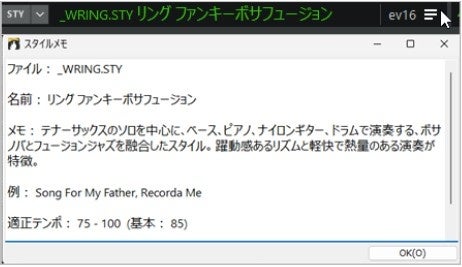
Addition of Style Memo Dialog
Similar to the Song Memo dialog, it displays information regarding the style.
Always Display Transposition Status
Even if not transposed in the display, "+0" is displayed so it can be checked at all times.

Time Signature Change Notification
When the time signature is changed within a song, an asterisk (*) is displayed on the time signature button.
Addition of Song Repeat Button
The new [Repeat] button displays the enable/disable status for repeating (replaying) the current song. Additionally, the menu for this button allows you to toggle repeating for the current song and set whether to repeat all songs or not.
Easier-to-Use Tap Tempo Button
The button size has been increased, making it easier to tap.
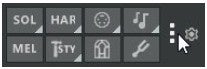
Overflow Menu
Buttons that do not fit in the additional features section of the toolbar are displayed in an overflow menu (vertical ellipsis).
Gear Button
You can use the gear button on the far right of the toolbar to open the Toolbar Settings dialog and the Preferences dialog.
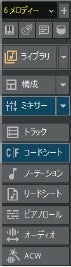
New Side Toolbar
You can select tracks and open various windows such as the multi-pick library.
Display Position Options
The side toolbar can be displayed on the left or right side of the screen. This setting is configured in the Toolbar Settings dialog.
Resize Options
You can narrow or widen the width by dragging the edge of the side toolbar. The set width is retained for the next startup.
Access to Mixer
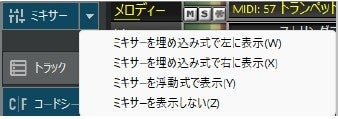
Use the [Mixer] button to quickly toggle the mixer's display/hide state. Furthermore, on the right side of the button, you can set it to be embedded on the left, embedded on the right, floating, or hidden. Additionally, the selected display state is retained for the next startup.
Track Button
The button at the top of the side toolbar allows you to select tracks and execute track-related settings and commands.
Window Buttons
The buttons logically arranged on the side toolbar allow you to open main windows (chord sheet, notation, piano roll, etc.) or sub-windows (piano, guitar, lyrics, drums). Note: When sub-windows are embedded in the screen, they are always displayed at the top and do not replace the main window. This design makes it easier to check instrument displays even when switching main windows.
Embedded or Floating Display
Each window can be displayed in an embedded or floating style.
・Ctrl + clicking a window button opens it in a floating style.
・Shift + clicking a window button opens it in an embedded style.
・If the corresponding window is displayed in an embedded style, the window button is displayed as enabled.
・The multi-pick library can also be displayed as embedded or floating. Ctrl + clicking the [Library] button opens it in a floating style.
Embedded Display of Multiple Windows
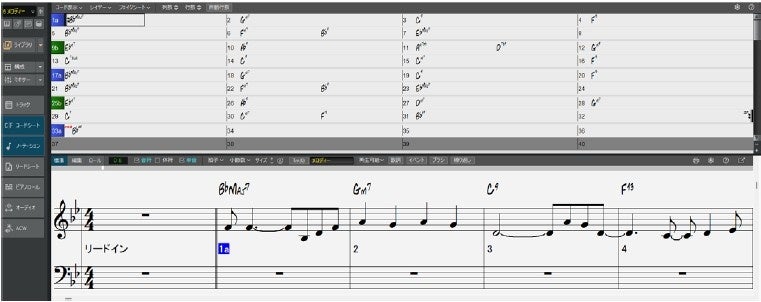
Shift + clicking the buttons for each window allows you to embed and display multiple windows on the screen. For example, to create a configuration with the chord sheet on top and the notation window below, click the [Chord Sheet] button, then Shift + click the [Notation] button.
Displaying Audio Chord Wizard
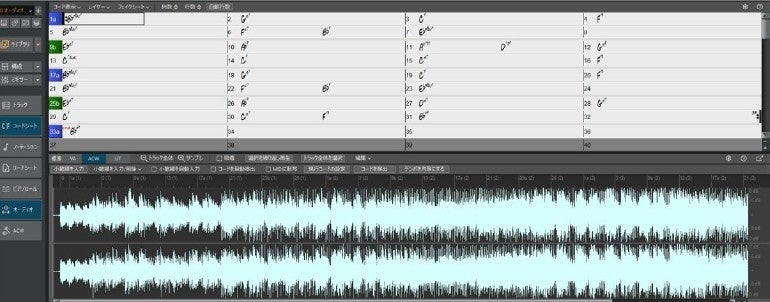
The Audio Chord Wizard uses a dedicated window configuration. The chord sheet is displayed at the top, and the audio editing window is displayed at the bottom.
Layout Adjustment
Each embedded window has a divider, allowing you to freely adjust the top and bottom sizes.
Unified Toolbar Design
The toolbars for all windows have been unified in design. Standard operations (settings, toggle embedded/floating, help, etc.) are placed on the right, and window-specific operations are placed on the left with labeled descriptions.
Unified Zoom Operations
Many windows now feature standardized scrollbars and vertical/horizontal zoom buttons.
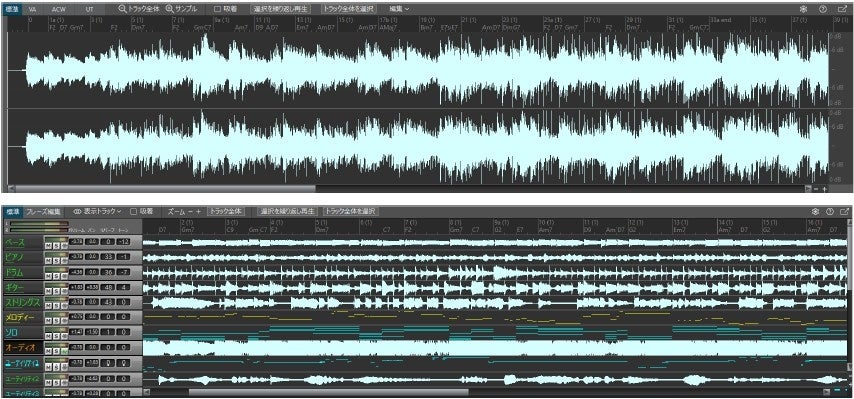
Renewed Color Schemes
Many windows now feature standardized scrollbars and vertical/horizontal zoom buttons.
Improved Repeat Symbols
The dots in the repeat symbol, which previously appeared star-shaped, are now displayed as smooth circles.
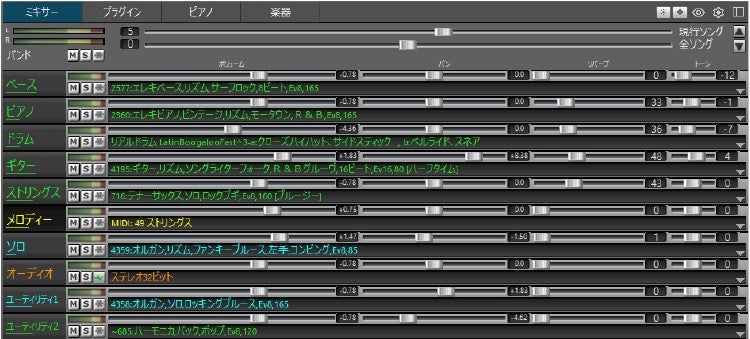
Improved Mixer Window Appearance
The overall layout has been organized and is now easier to view.
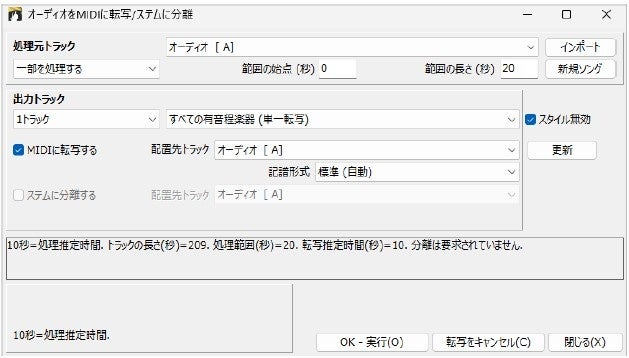
Equipped with Audio to MIDI Transcription Feature
You can analyze audio and export information such as pitch and timing as MIDI data. The MIDI data can be displayed as sheet music or played back as MIDI. It is possible to transcribe an entire audio file (all pitched instruments and drums) to MIDI, or to extract and transcribe only individual instruments (bass, drums, guitar/piano, vocals). This feature uses high-performance AI, resulting in highly natural and musical results.
For example, by transcribing an audio file of your favorite pop song to MIDI, you can create sheet music for each instrument. The generated MIDI data can be played back alone or together with the original audio file. Since it is highly effective as a learning tool, you can learn while following each instrument displayed on the piano keys or guitar fretboard. Additionally, by combining it with the stem separation feature, you can also separate audio into individual tracks for use.
Others
Expansion of Audio Stem Separation Feature
Piano Roll Window Extension
Toolbar Organization
Addition of Keyboard Shortcuts
M4A/MP4 File Support
And many other usability improvements accompanying UI changes, as well as various functional enhancements, have been made, allowing you to enjoy more convenient and efficient song production.
Included Content
|
Number of Contents / Product Name |
BasicPAK |
MegaPAK |
EverythingPAK |
|
Accompaniment Styles (MIDI/Real) |
1,315 types |
3,191 types |
12,649 types |
|
RealTracks |
715 types |
899 types |
4,270 types |
|
RealDrums |
156 types |
214 types |
909 types |
|
MIDI SuperTracks |
76 types |
101 types |
452 types |
|
MIDI Soloists |
151 types |
330 types |
340 types |
|
MIDI Melodists |
123 types |
210 types |
210 types |
|
Loop Materials |
1,075 types |
1,075 types |
1,431 types |
|
Artist Performance Sets |
1 type |
3 types |
20 types |
|
Artist Video Performance Sets |
- |
- |
1 type |
|
Instrument Learning Sets |
- |
- |
25 types |
Windows Version Operating Environment
Supported OS: Windows 11 / 10 (*Each 64-bit Japanese version)
CPU: 1.0 GHz or higher (2.0 GHz or higher recommended)
Memory: 1 GB or more (2 GB or more recommended)
Storage Free Space [BasicPAK] 45 GB or more (additional 35 GB required for download version)
[MegaPAK] 55 GB or more (additional 45 GB required for download version)
[EverythingPAK] The following free space is required depending on the installation method:
・If starting the application directly from HDD: 10 GB or more
・If installing only the application on internal storage: 45 GB or more
・If installing the application and all real materials: 220 GB or more
(additional 200 GB required for download version)
Monitor: 1024x768 pixels (1366x768 pixels or higher recommended)
Internet: Required to activate Band-in-a-Box license.
Also, an internet environment is required when using synthesized singing voice generation and AI lyric generation.
Others: MIDI system such as software synthesizer or external MIDI sound source as necessary.
Packaged Version Media: BasicPAK/MegaPAK is USB memory. EverythingPAK is USB-connected HDD (USB-C/USB-A compatible).
<Contact Information for Publication>
WonderWorks Inc.
https://www.wonderworks.jp/
Band-in-a-Box Official Website
https://biab.jp
<Inquiries from the Press>
WonderWorks Inc.
Contact: pr@wonderworks.jp